
tags; receipt creative, update campaign, change image
If you use custom HTML, please send the update HTML template instead of using this method which is for the Grahical User Interface generated email template.
- Log into the retail login
- Click on Email Templates

- Click on the campaign you wish to edit. If it is currently live, use a copy (or Clone), do this by clicking 'Clone' down the bottom right of the page which will create a copy.
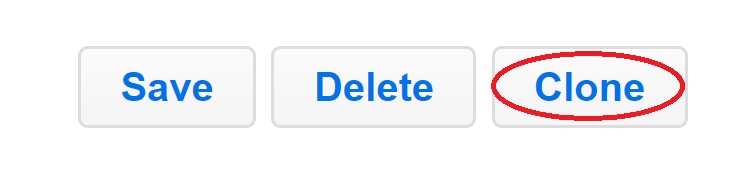
- If you cloned the template, rename it. Then click 'Choose File' on the Background Image row

- Click Save down the bottom, the new image will appear in the GUI. If it has a different size or ratio to the old one, you'll change them so they look right by dragging the elements. It resizes like a normal window. Once you are happy, click 'Save' again.
- If you created a copy or clone, you'll need to switch it live, Click 'Companies' from the top menu, then select the correct company from the list.
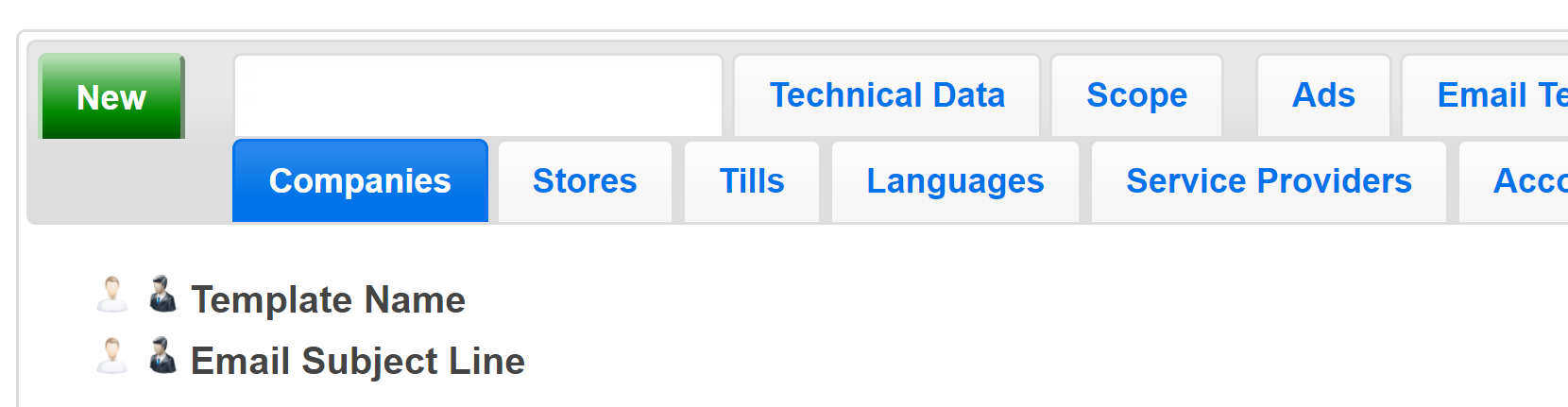
- Scroll down to 'Email Template', and select the new one you've just created. Click Save down the bottom and the template is now live.