
tags; install, reinstall, reinstalled, installing email receipts, eyos retail Install, eyos retail installed
- Log in to the Retail Login backend
- Ensure the store and till are there by checking the till status
- If the store or till have not been created, follow this guide to create a new one. Make sure the hostname (machine name) is correct as that is used to download the tills initial configuration. If you only want to create a till under an existing store, you could instead manually add a new till to the store.
- There is a link to the highest version number of the software installed at the top right of the Retail Login (circled below)
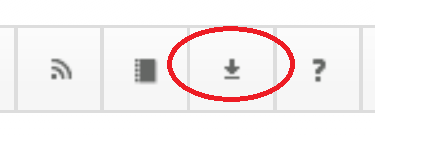
- Download the software then install the MSI onto the machine.
- After installation, the prism will start up automatically. You should see something similar to the wait bar below indicating the machine is downloading it's configuration.

- Once it has finished configuring, test the connectivity and the try re-printing a receipt from the point of sale to ensure the behaviour is correct.
- If there are any problems, please contact support@retail.eyos.one and provide the hostname of the machine, the printer name and the printer type.