
tags: email status, bounce, bounced, email delivered, transaction search, spam, mailbox unavailable
- Log in to the Retail Login
- Click on the Datahub icon in the top right of the page which will be there if you have access to the Datahub

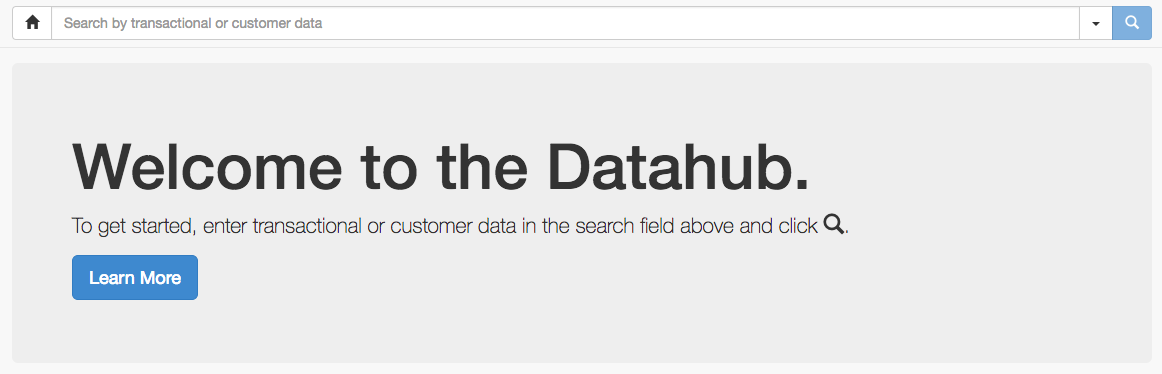
- Search for the transaction or email in the Datahub search box
-
Click on the Learn More button to get queues how to optimise your search results.

-
- Click on the transaction which looks closest to the one you are looking for which will take you to the transaction details page
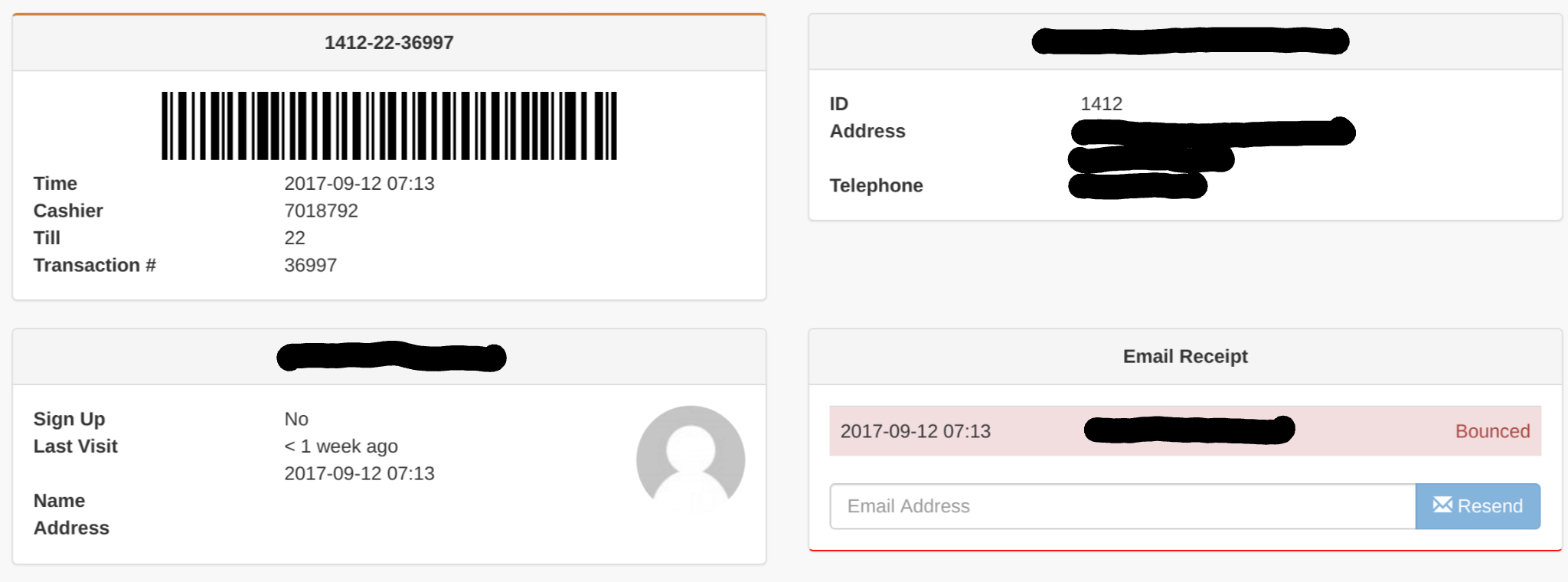
In this transaction, you can see the email has bounced in the bottom right where it is highlighted on the page. Each mail service provider has their own error conditions but they generally fall into one of these two categories:
- Bounced: Mailbox does not exist or is permanently unavailable for some reason. These emails have failed and should not be retried
- Soft Bounce: The email address exists and is valid but there is a temporary problem such as their inbox being full. These emails will be re-tried and may be converted into a 'Bounce' after a number of days.
- Ok: If the email has been delivered, it will say 'OK'. If the customer says they haven't received a receipt, the spam folder should be checked - If the customer says they didn't shop at the store but received an email receipt, it is likely the store staff typed an incorrect but valid email that went to the wrong person. You should remove this email address