
To test the connection between the till and the eyos retail cloud service, please follow the steps below
- Locate the prism icon in the system tray
- Right click the icon, and select Test Connectivity
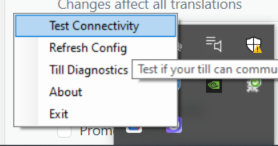
- After 15-20 seconds, a message box will appear informing you whether or not the test was successful.
- If the message box displays "A receipt was posted successfully from {{store_name}} to test @yreceipts.com", then the connection is active and communicating with yRcloud.
- If the message box displays Connection error (see image below) then this means your till does not have an active network connection with the eyos retail cloud service. In this case, our client application will not run and the eyos retail data capture screen will not appear when processing transactions.
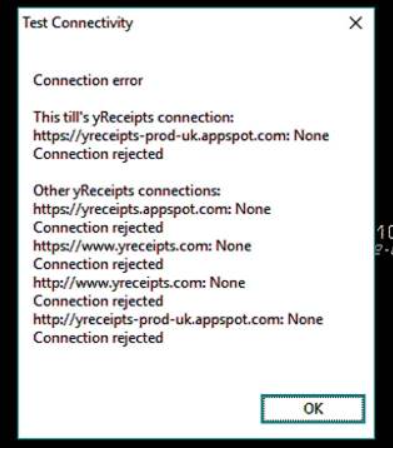
In case of the above event, please reach out to your local network team to whitelist our application on your network. On the message box, it is essential that at least the till's eyos retail connection url is whitelisted.
You can also refer to this article https://yreceipts.zendesk.com/hc/en-us/articles/115006565767-Installation-requirements within the network requirements section that lists out all the data centers and the website url. If you are unsure what data centre your account falls under, please reach out to your eyos retail account manager or raise a support ticket.
tags: connectivity, network, can't connect, connection issues